
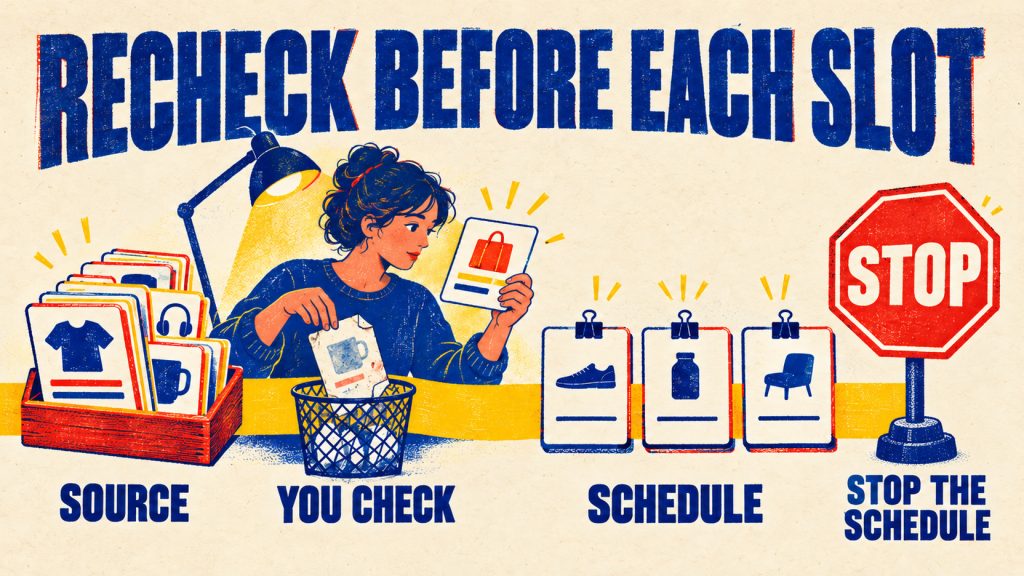
Schedule the deal posts that will still be true when they send, and give every scheduled offer a recheck and a stop. RedFox Auto Forward Telegram’s Auto Post Scheduler can post selected messages from your source chat at a fixed date and time, on a daily, weekly, monthly or custom repeat, or at a set interval in minutes. A prepared channel keeps its rhythm without anyone online at posting time, because activated schedules run on the bot side rather than on your device.
The schedule decides when a chosen message is posted. It does not check whether a price, stock level, coupon or campaign is still valid, so that check stays with you. This guide shows which posts suit a schedule, how to prepare an affiliate-ready source, how to pick the mode and timezone, and how to retire a schedule safely. The three-slot plan below is an illustrative planning sheet, not a live campaign, a configured account or a recommended best time to post.
Product identity: use RedFox Auto Forward Telegram (@AutoForwardNew_Bot). The previous @Auto_Forward_Messages_Bot has moved to this current handle. Its official Web dashboard, iOS app and Android app are the management entry points. AffiliateTelegram is AutoForward Messages’ official affiliate-workflow partner, not the affiliate network.
Availability: modes and settings follow the official Auto Post Scheduler guide. Confirm the scheduler is available on your current plan before you build a calendar around it; this article does not quote prices or account limits.
1. Decide which posts deserve a schedule
Sort a post by how quickly its facts can go stale, not by how attractive it looks today.
Evergreen help
- Examples: a buying guide, a size or compatibility explainer, or a note on how your channel chooses deals.
- Schedule fit: good, including Repeat once the advice and its links have a review date.
Campaign reminder
- Examples: a reminder that a store event you have confirmed starts or ends on a given date, without promising a price or stock level.
- Schedule fit: a single Fixed Time slot, checked against the actual campaign dates and terms shortly before it posts.
Fast-changing deal
- Examples: a specific product price, a limited coupon or a short flash offer.
- Schedule fit: only a Fixed Time slot you can recheck shortly before it sends. If you cannot recheck it, post it live once you have verified it, or leave it out.
A scheduled post repeats your source message as it stands. A missed slot is easier to recover from than a post that sends readers to an offer that has already ended.
2. Prepare one affiliate-ready source
The scheduling guide recommends a dedicated source chat for scheduled messages, and the message IDs you use must come from a source chat already added to that task. A source you own and use only for scheduled posts keeps IDs predictable and stops unrelated posts from becoming candidates.
- Finish the message in the source: include your own permitted affiliate link, the product facts you have verified and any disclosure your program or market requires. The schedule posts that message; it is not a second editing pass.
- Know what the task will do to it: a scheduled post is handled by the same task, so that task’s affiliate, Replace, formatting or shortening settings can apply. For the simplest route, keep the source message affiliate-ready and avoid adding transformations you have not inspected.
- Check both link paths: look at the caption link and, separately, any button destination in the private target. One does not prove the other.
- Use content you may republish: access to a source chat is not permission to repost its content.
Prepare safely. The official task guide documents that creating a task activates it, so create it with an empty source you control and pause it straight away. A schedule-only source still belongs to a forwarding task: before you add drafts, decide whether new source messages should also forward in real time. If they should not, enable the scheduler’s pause-real-time-forwarding option, save, and reopen the task to confirm the saved value rather than relying on a default.
3. Choose Fixed Time, Repeat or Interval
Each task uses one schedule mode at a time. If you need two, the scheduling guide suggests separate tasks.
Fixed Time
- What it does: posts at a specific date and time; add one slot per post.
- Best for: a single campaign reminder, or a deal you will recheck shortly before it sends.
Repeat
- What it does: posts at a chosen time daily, on selected weekdays, on a day of the month or every set number of days. A monthly day that a month does not have, such as the 31st, is skipped.
- Best for: evergreen help with a named review owner. Repeats keep running until you turn off the schedule or the task, or delete the schedule; they do not end when a campaign does.
Interval
- What it does: posts every set number of minutes, optionally from a future start time, until you stop it. With several message IDs, the posting order decides each cycle: All sends every listed message with a delay between them, Random picks one and Sequential works through them in order.
- Best for: rotating evergreen reminders. It is a poor fit for time-sensitive offers, because the same message keeps coming back.
Not the same as a posting slot: Delay for Source postpones or spreads incoming messages, Delay for Targets spaces delivery across several target chats, and Scheduler Power On/Off turns a task on and off at set times. They help with pacing, but none of them is a dated editorial slot or a check that an offer is still valid, and no delay value guarantees that a platform limit will never apply.
4. Confirm timezone, dates and message IDs
- Timezone: scheduled times follow the timezone set for your AutoForward account, not your phone or computer clock. If your audience is elsewhere, choose the account timezone that fits your main audience and write it next to every slot.
- Full date: record the date as well as the time. If your chosen timezone changes its clocks, recheck the slots near that date.
- Message IDs: copy the message’s Telegram link and use the number at the end. The ID must belong to a source chat added to this task.
- Avoid ID 0 for offers: 0 means “the latest message in the source,” which changes whenever something new is posted. Give every offer slot an explicit ID.
- One message per Fixed Time or Repeat slot: the posting-order choices are documented for Interval mode. In this plan, each Fixed Time or Repeat slot names one explicit message ID, so every slot points to one known message.
- Real-time forwarding: read back the saved pause and resume choices, then check the task’s actual state after a scheduled post instead of assuming forwarding resumed on its own.
5. Use a three-slot planning sheet
Illustrative planning sheet: the times are arbitrary editorial examples in your chosen account timezone, not a recommended best time, a configured schedule or a test result. Fill in your actual date, source and message IDs before you configure anything.
- Sheet header: [ACCOUNT TIMEZONE]; [AUDIENCE TIMEZONE]; [FULL DATE]; [SCHEDULE OWNER].
Slot 1 · 09:00 · Evergreen buying guide
- Content: a fit or buying guide whose own links you have already checked.
- Mode: Fixed Time for the first post; Repeat only after you set a review date.
- Source and ID: [OWN DEDICATED SOURCE] / [MESSAGE ID].
- Check before enabling: links, disclosure and advice still accurate; [NEXT REVIEW DATE].
- Stop rule: turn off the schedule when the advice or link is withdrawn.
Slot 2 · 13:00 · Campaign reminder
- Content: a reminder about a store event you have confirmed, with no price or stock promise.
- Mode: Fixed Time.
- Source and ID: [OWN DEDICATED SOURCE] / [MESSAGE ID].
- Check close to the slot: actual campaign dates, destination and terms; [CHECKED BY / AT].
- Stop rule: if the campaign changes, remove the remaining slot rather than only deleting the source message.
Slot 3 · 18:00 · Time-sensitive deal
- Content: a specific offer, scheduled only if you can recheck it shortly before it sends.
- Mode: Fixed Time, or no schedule if a recheck is not possible.
- Source and ID: [OWN DEDICATED SOURCE] / [MESSAGE ID].
- Check close to the slot: product and variant, price, stock, coupon conditions and expiry; [CHECKED BY / AT].
- Stop rule: if anything is unknown or expired, remove the slot or turn off the schedule, then inspect the target before any retry.
Decide at the check
- Go: every fact in the message matches the current offer, and your link opens the intended product.
- Hold: something cannot be confirmed yet. Remove or turn off the slot until it can.
- Withdraw: the offer has ended or changed. Turn off the schedule first, then update or remove the source message.
AutoForward selects and posts the message you scheduled; it is not a merchant-monitoring service. The human recheck is what keeps an expired coupon away from your readers.
6. Stop or change a schedule safely
Turn the schedule off before you remove the content. Deleting the source message that a Fixed Time slot points to is not a safe way to cancel it: when the selected message cannot be found, fixed-time posting can fall back to the latest message in that source. Use one of these first, then edit or delete the source message:
- remove the slot or schedule entry;
- turn off the Auto Post Schedule toggle;
- pause or stop the task.
Repeat schedules keep running until you turn them off or delete them, and closing the dashboard or app does not stop them, because activated tasks run in the cloud. After any change, reopen the task to confirm the saved schedule and task state, then look at the actual target.
A schedule change cannot retract a message that has already been delivered; if a post needs correcting, edit or remove it in the target channel yourself. A change made right around a slot’s time may not stop a send already under way, so check the target before you post a correction or retry. If you run several routes, record each schedule and its stop owner in your operations inventory. If a scheduled reminder overlaps with similar posts from other sources, the duplicate-post guide helps you tell a repeat from a useful update.
7. Start with one private scheduled post
- Prepare the route. Use a paused private task with your own dedicated source and a private target you control.
- Add one affiliate-ready message. Put it in the source and note its message ID.
- Set one Fixed Time slot. Choose a time a short while ahead in your account timezone, use that explicit ID, then reopen the task and read the saved schedule back.
- Activate and inspect. At the slot, check the target: the right message, the intended product and variant, your own working link in the caption and any button, and the disclosure intact.
- Turn the schedule off and confirm the saved state before you build a full calendar.
Open AutoForward and set up one private Fixed Time slot → Once activated, scheduled posting runs in the cloud without your device online. Keep the freshness check and the stop rule with the person who owns the offer.