
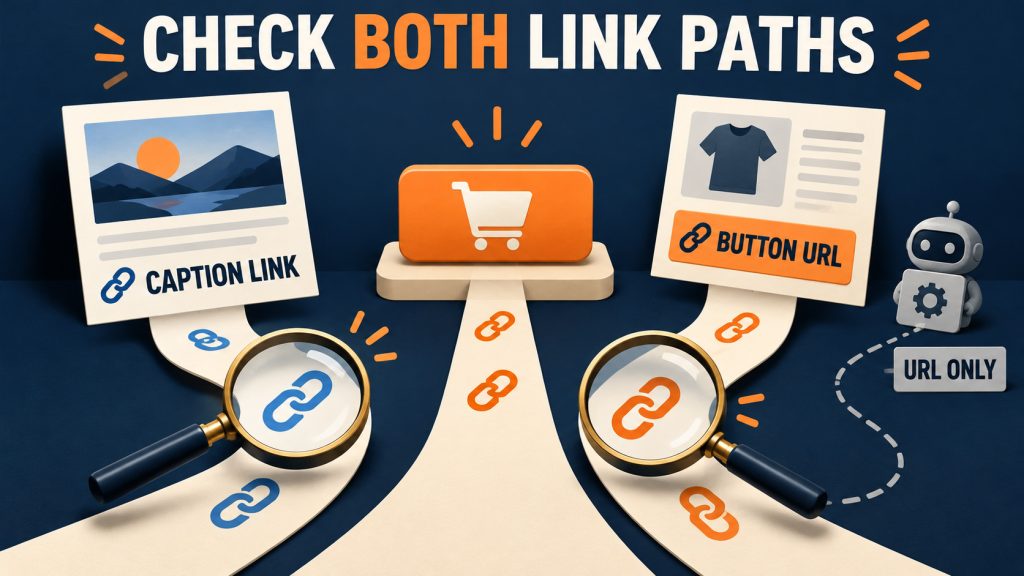
A deal’s purchase link may sit inside a “Buy” button rather than in the caption. RedFox Auto Forward Telegram (@AutoForwardNew_Bot) offers Auto Clone Button to carry useful source buttons into forwarded posts, with URL filtering, replacement rules and duplicate-button removal. That gives readers a direct next step while letting you choose which links belong in your channel.
Check the two paths separately: a correctly converted caption link does not prove that the purchase button uses your affiliate identity. Button URL rules are a separate control. The AffiliateTelegram toolkit describes both capabilities; the Auto Clone Button guide explains the button settings.
AffiliateTelegram is AutoForward’s official partner for affiliate workflows; AutoForward provides the automation platform. The previous @Auto_Forward_Messages_Bot moved to @AutoForwardNew_Bot. Use this current handle to access RedFox Auto Forward Telegram.
Recognize URL buttons and bot actions
A URL button opens a destination
A product button and a channel button can both contain URLs, even though they serve different purposes. Record the actual URL behind each label. “Buy now” does not tell you which merchant, product, variant or affiliate identity the button will open.
A callback button asks a bot to do something
A callback button carries an action for the source bot rather than an ordinary purchase URL. Copying its appearance does not transfer that bot’s behavior. The Auto Clone Button guide warns that callbacks do not function across bots in the same way as URL buttons.
For a deal-link workflow, use URL Only mode to focus on buttons with URLs. Do not treat an “Apply coupon” callback as a working coupon tool in the destination, or turn its action data into a guessed merchant link.
Prepare the task for button forwarding
- Check access to Auto Clone Button. Its guide describes a credit-unlocked addon. Review its active status and expiry under My Addons, along with your forwarding plan’s applicable limits. Do not assume the addon is included in every plan; see the addon overview for the distinction.
- Use a private route you control. Choose source content you have permission to reuse and an empty test destination. Follow the first-task guide if you need the basic task setup.
- Check the sender. Use the task’s bot-sending mode for cloned inline buttons. Do not assume the same button behavior when sending through a personal account.
- Choose buttons, not button-to-text conversion. Leave Convert Buttons To Text off for this workflow; that is a different way of presenting source links.
- Pause, configure and read back. Enable Auto Clone Button for the intended task, choose URL Only for selective URL handling, save, then reopen the settings to confirm what is active.
This gives you a button-forwarding setup, not evidence that a particular product button has already changed. Technical URL handling also does not grant permission to republish content or use an affiliate link in a placement your account does not allow.
Choose what to keep, block or replace
Filter the source URL before replacing it
URL Only mode supports whitelist patterns for URLs you want to admit and blacklist patterns for those you want to exclude. A blacklist match overrides a whitelist match. These checks happen against the source button URL before replacement, so a rule that allows only your eventual destination can exclude the source button before it gets changed.
Inspect the actual source URLs and use narrowly scoped rules. If source credit must remain accessible, keep that credit in the post or another agreed location before deciding to remove a channel button. A broad block on all Telegram links could remove a legitimate source or support destination.
Use button URL replacement for a deliberate destination change
Button replacement uses literal, case-sensitive substring matching, not the caption Replace feature’s regex options. It is not an automatic affiliate-link generator: it changes the characters matched by your rule.
For a specific product button, work from the complete observed source URL and a complete, valid replacement link supplied by your own affiliate account or network. Keep the same product and variant. Avoid inserting tracking text after a bare domain or in the middle of a path; that can move the path into a query and send readers to the wrong page. A complete-URL match is narrower, but still requires inspection because substring replacement can affect more than one occurrence.
Do not invent affiliate parameters or assume every source button’s ID changes when you configure caption monetization. The supported-link guide covers marketplace conversion choices; it does not certify a button’s final URL.
Remove identical URL buttons without hiding distinct choices
Deduplicate can remove repeated buttons pointing to the same URL, keeping the first occurrence. Two different labels pointing to the identical URL can therefore reduce to one button. Two URLs for the same product are not necessarily duplicates: they may contain different variants, destinations or tracking.
Check the final set after replacement, since two source URLs may become identical. Do not rely on automatic equivalence between uppercase and lowercase paths, different query strings or trailing slashes. Button deduplication is not duplicate-message filtering.
If your task also has custom buttons, decide whether cloned buttons should coexist with them or replace them. Check the final order and row/button limits in the destination; a visible button can disappear because of a layout limit, not because its URL was rejected.
A three-button decision worksheet
Structural example only: imagine an authorized source post with the following three buttons. The bracketed fields are non-runnable placeholders, not real merchant links, screenshots or recorded AutoForward results. Fill in the observed fields from your own private test.
Button 1: “View product” — product URL
- Source: [COMPLETE OBSERVED PRODUCT BUTTON URL].
- Decision: keep the URL if it is already the intended, permitted link; otherwise replace it with [COMPLETE VALID OWN-AFFILIATE URL FOR THE SAME PRODUCT AND VARIANT].
- Rule check: admit the source URL before replacement. A caption conversion alone does not complete this decision.
- Observed output: [RECORD RETAINED LABEL, ACTUAL BUTTON URL AND FINAL PRODUCT PAGE].
Button 2: “Source channel” — channel URL
- Source: [COMPLETE OBSERVED SOURCE CHANNEL URL].
- Decision: keep it when required for attribution or useful context. Block it only when your reuse agreement allows removal and required credit remains available elsewhere.
- Rewrite alternative: replace a purely navigational channel link only if the new destination is authorized and the unchanged button label still accurately describes it. Do not redirect a “Source channel” label to your own channel while implying it is the original source.
- Observed output: [RECORD KEPT, BLOCKED OR REPLACED; VERIFY REQUIRED CREDIT].
Button 3: “Apply coupon” — callback action
- Source: [SOURCE BOT CALLBACK ACTION; NO ORDINARY URL].
- Decision: exclude from this URL Only workflow. A copied action is not a working coupon-application feature.
- Rewrite: do not guess a URL from callback data. If you have a valid alternative link, treat it as a separately verified URL button, not a converted callback.
- Observed output: [CONFIRM CALLBACK BUTTON IS ABSENT; CHECK COUPON TEXT AND CONDITIONS REMAIN].
The worksheet gives each button a purpose. It does not assert that a test was run or that every account has the same saved settings.
Inspect the caption and every retained button
Use a genuine, authorized source post in your private route, then compare the delivered post with it. An image of a “Buy” label cannot show whether its URL is correct.
- Read the caption. Confirm product, price, currency, coupon conditions, required source credit and disclosure. Inspect each clickable caption link’s actual destination.
- Open each retained URL button. Check the complete URL and the final merchant or channel page. Compare product and variant, then check the affiliate identity expected for that link format.
- Confirm omissions. A blocked channel link and the callback action should not remain as misleading buttons. Required source credit must still be present.
- Challenge the rules. Try an authorized case outside your whitelist, a URL matching both allow and block rules, and two identical URL buttons. Record what appears rather than assuming the result.
- Check the whole layout. Look for lost purchase buttons, misleading labels, custom-button collisions and row limits. Pause and narrow a rule when the delivered result differs from the intended decision.
If the caption looks correct but the button does not, investigate the button rules first. If the caption conversion itself is wrong, use the affiliate-link checklist. A correct URL is a useful configuration check, not proof of a tracked order or paid commission.
Start with the buttons readers need
Keep the purchase route clear, retain required source context and leave source-bot actions out of a URL-only deal post. A small, deliberate button set is easier to check than copying every action without understanding it.
Open the AutoForward dashboard, check your Auto Clone Button access and configure one paused private task. Use the three-button worksheet to inspect the caption and buttons separately before forwarding to your audience.