
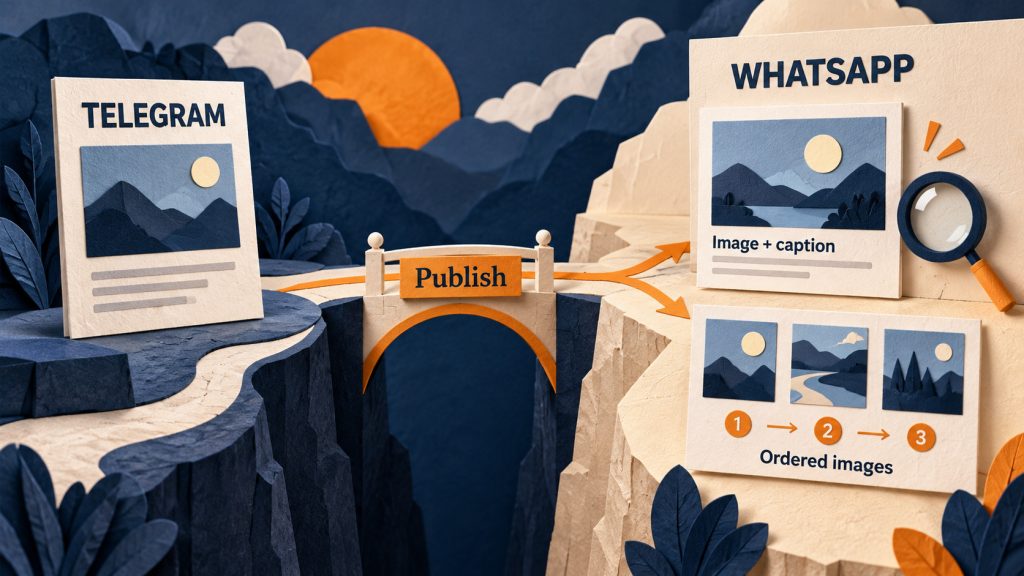
AutoForward’s External Publish route lets a Telegram deal feed supply a connected WhatsApp destination, so you can reuse an affiliate-ready post without rebuilding it by hand for each audience. The useful starting point is a finished deal message, your own connected WhatsApp account and a destination you are authorized to publish to.
Text, a captioned product image and an album need different checks. This guide explains those differences and provides a private-pilot worksheet. It is a setup and preparation guide—not a claim that the example posts were sent or photographed on WhatsApp.
Publisher relationship: AffiliateTelegram is AutoForward’s official partner for affiliate workflows. AutoForward supplies the forwarding and automation platform, not affiliate-network placement approval or WhatsApp certification.
Start with a finished affiliate-ready deal
A clear route is:
Authorized deal input → reviewed affiliate-ready Telegram feed → External Publish task → connected WhatsApp destination.
The middle feed is an editorial staging choice, not a required extra product feature. It makes the handoff visible: the message selected for publishing already contains the intended product link, qualifying conditions, appropriate source credit and affiliate disclosure.
If you use a separate Telegram forwarding task to prepare that feed, validate its affiliate settings there first. Creating a WhatsApp Publish task does not by itself prove it inherited another task’s marketplace IDs, Replace rules or shortening choices. Inspect the actual message that the Publish task reads.
Use links generated for your own eligible account. Check your merchant or network’s current rules for the specific WhatsApp placement and market; Telegram permission is not automatically permission for every other destination. This is separate from AutoForward’s technical ability to publish. The supported affiliate-link guide helps distinguish link-conversion routes.
Prepare the connection and target
The first-party WhatsApp setup guide describes an active External Publish addon, an AutoForward account connected to Telegram and a WhatsApp connection paired through a QR code. This linked-device route does not ask you to enter a Meta Cloud API Phone Number ID or access token.
For an existing connection, start by checking that it shows Connected. If it shows Reconnect required, use the reconnect flow for that connection rather than creating a replacement account. Pair only an account you are authorized to use, and treat any live QR code as a session credential—not something to include in a tutorial screenshot.
- Telegram source: you can access it and have permission to republish its content.
- WhatsApp connection: it is your intended account and currently connected.
- Destination: choose an available Contact, Group or Newsletter from that connection’s destination picker, with permission to publish there. Newsletter is the product’s destination label for a WhatsApp Channel.
- Audience: the pilot is private and authorized; it is not an invitation to create or message a new public audience.
Start with one selected destination even if your current task interface supports more. Confirm that target before extending the route to another audience; the single-target pilot is a deliberate baseline, not a claim about every account’s destination limit.
Choose the content shape deliberately
Media-source note, checked 15 October 2026: the public setup guide still contains older text/caption-only instructions alongside contradictory media answers. The supported media and ordered-album behavior described here follows the owner-confirmed product contract and current read-only implementation, not that older limitation. Your private destination check establishes what your own connected route actually produces.
Plain text
A plain-text deal is the simplest baseline for checking destination selection and links. Include the product identity, relevant conditions and the full intended URL. Formatting can be adapted to WhatsApp’s text conventions rather than reproducing Telegram’s appearance exactly.
A Telegram link hidden behind words may become a readable label plus its URL. Review the clickable address, not just the wording. A preview card is presentation, not proof that a link was converted correctly or tracked by a network.
One product image with a caption
The supported route includes image publication, not just caption extraction. For an image-led deal, check both the actual image and its associated caption. The caption should still describe the same item and carry the intended URL and material conditions. Receiving the caption alone is not acceptance of the image test.
Do not assume an image’s printed price, size or expiry has been refreshed because its caption was edited. Use current, permitted product content and check that image and words agree.
An album
Album handling is ordered, multi-part publication with one processed caption. It is not a promise of Telegram’s native album layout on WhatsApp. The inspected planner supports source albums up to ten items, while sending media one item at a time; that is a supported planner boundary, not a universal WhatsApp upload limit.
Choose an album only when its images belong together. Check the complete ordered set and where the processed caption appears. Do not expect every original sibling caption to be restored after message processing.
Buttons and other Telegram interactions
Do not treat a Telegram purchase button, callback, poll or reply interaction as a WhatsApp-native equivalent. For the pilot, put the required product URL in the message text or caption and validate it there. A caption link check does not establish that an inline purchase button was migrated.
Prepare a private Publish pilot
Use a controlled, empty Telegram source for setup, not an active deal channel. That source must remain empty until you deliberately provide the permitted test posts. Keep production feeds out of the selected source list while configuring the pilot.
- Open Publish and review the intended WhatsApp connection in Manage Accounts. Confirm the active External Publish entitlement without assuming it is included in every plan.
- In the Publish Task flow, select WhatsApp and your Connected account.
- Select the controlled Telegram source and choose the exact private WhatsApp destination from the picker. If two names are similar, confirm the actual intended destination rather than guessing from a label.
- On review, check the account, selected source and target. Create only when you are ready to control the pilot; immediately stop it while you finish preparation if creation starts it running.
- For an authorized test, start that pilot and provide a new harmless message after task creation. Inspect the WhatsApp destination itself, then continue to the image and album checks.
This is a new-message workflow; selecting a source does not backfill its archive. The first affiliate task guide covers the separate Telegram source-and-target foundation if you need it.
Check the image and album results separately
The following is a blank acceptance worksheet, not an output transcript. Replace bracketed descriptions only with permitted real source content during your own authorized private pilot. There are no live offers, invented prices or test results in this template.
Case A: one image plus affiliate-ready caption
- Source preparation: [PERMITTED PRODUCT IMAGE], [MATCHING PRODUCT DESCRIPTION], [ACTUAL CONDITIONS], [OWN ELIGIBLE LINK], [APPLICABLE DISCLOSURE].
- Target check: the image is present and legible; its caption describes that image; the product link is clickable and opens the intended item and market.
- Content check: required conditions and disclosure remain readable; no unintended private or source-account details appear.
- Observed result: [LEAVE BLANK UNTIL INSPECTED].
- Decision: [KEEP PAUSED / READY FOR THE NEXT PRIVATE CASE, BASED ON THE ACTUAL RESULT].
Case B: a coherent product album
- Source preparation: [PERMITTED ORDERED IMAGE SET], [ONE REVIEWED CAPTION], [CORRESPONDING OWN LINK AND CONDITIONS].
- Target check: all expected parts are present in the intended order; the processed caption belongs to the set; the final link still opens the correct item.
- Presentation check: the result is useful as WhatsApp multi-part content, without assuming a single native album or Telegram-identical formatting.
- Observed result: [LEAVE BLANK UNTIL INSPECTED].
- Decision: [KEEP PAUSED / ACCEPT THIS FORMAT FOR THIS TARGET, BASED ON THE ACTUAL RESULT].
Check each target separately before expansion. A successful text post does not establish image delivery; one image does not establish album completeness. Likewise, a provider acceptance message is not proof the audience received, read or purchased through the post.
Handle changes without mirroring assumptions
When a deal’s conditions change, inspect the WhatsApp post and handle the correction deliberately. Update behavior depends on the destination, enabled settings and available service support. Do not assume every Telegram edit or delete is mirrored, or rely on media, caption and deletion parity without checking your actual route.
Stop the pilot before changing its source or destination. Save and reopen the selected connection and target, then use a new permitted private check after resuming. Stopping the task is not the same as unlinking the WhatsApp account.
If an album is incomplete or the result is uncertain, inspect the destination before retrying. Record which parts arrived and pause the route rather than replaying the full set blindly. Reconnect an account only when its actual status requires it; a missing image alone is not proof the connection must be replaced.
Take the next step with your own destination
Begin with your finished affiliate-ready message and one authorized connected target. Prove text, the captioned image and the album as separate cases, then use only the formats that work for that destination and audience.
Open AutoForward to review your WhatsApp connection and Publish setup, or use RedFox Auto Forward Telegram (@AutoForwardNew_Bot). Keep the pilot private until the link, content and destination checks are complete.